Installing on Microsoft Edge
Steps
1. Download the installer
To get started, download the EduQuick HTML installer file to your computer.
2. Open favorites manager
Navigate to the favorites manager by typing edge://favorites in your address bar.
3. Enable favorites bar
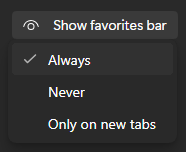
Ensure your favorites bar is set to Always so you can access the tool easily.
4. Import the file
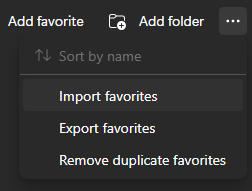
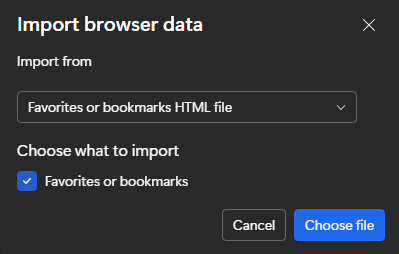
Click the three dots (options menu) in the favorites manager, select Import favorites, and then click the Import button.

5. Select the HTML file
Find and select the eduquick.html file you downloaded in Step 1.
6. Success
EduQuick will now appear in your favorites bar.
Important: Make sure you are logged into Educake before running EduQuick.