Installing on Android (Limited Support)
Android browsers do not natively support standard bookmarklets, making the process more manual than on Desktop or iOS.
Warning: This method is discouraged as it may be inconsistent and requires manual steps each time you use it.
Steps
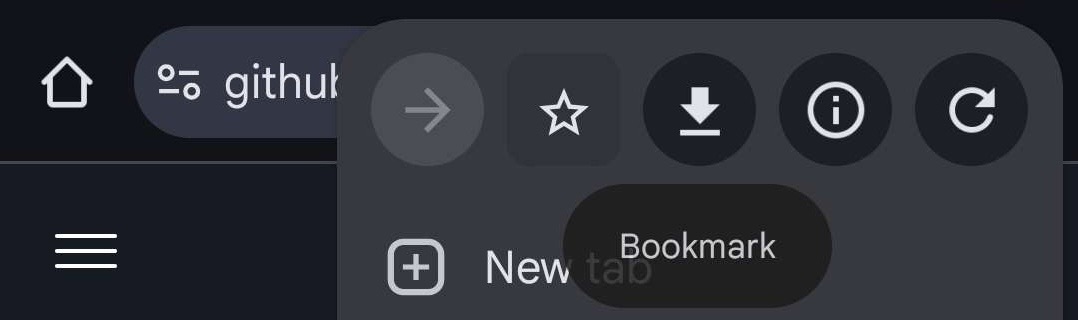
1. Bookmark the repository
First, bookmark the EduQuick JS page in your mobile browser for easy access to the source code.
2. Run the script manually
Because Android does not support “one-tap” bookmarks for scripts, you must perform these steps each time you want to use the tool:
A. Copy the script Open the JS file you bookmarked in Step 1, then copy the entire code block.
B. Execute in Educake Log into your Educake account. Clear your browser’s address bar completely, paste the code (ensure it starts with javascript:), and press Go on your keyboard.

Tip: If the browser removes the
javascript:prefix when you paste, you will need to type it back in manually at the start of the line for the script to run.