Installing on iOS (Safari)
Unlike Desktop browsers, iOS requires a manual bookmark setup to execute scripts. Follow these steps to install EduQuick on your iPhone or iPad.
Steps
1. Copy the script
Open the source file and copy the entire block of code to your clipboard.
2. Create a temporary bookmark
Bookmark this current page (or any page) to create a placeholder that we will edit in the next step.

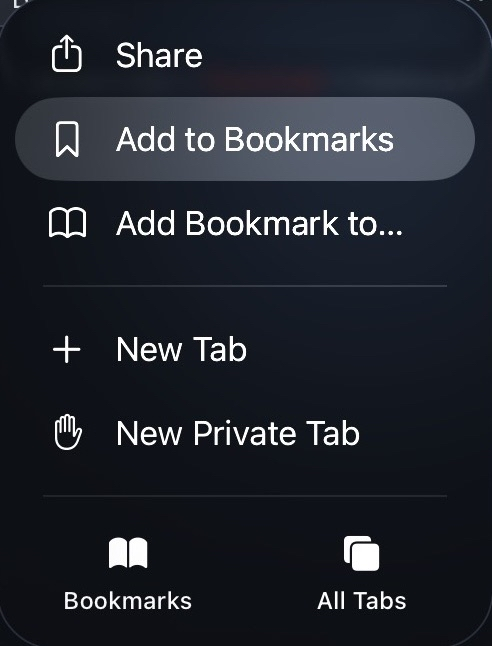
3. Edit the bookmark
Open your Bookmarks menu, find the bookmark you just created, and tap Edit.
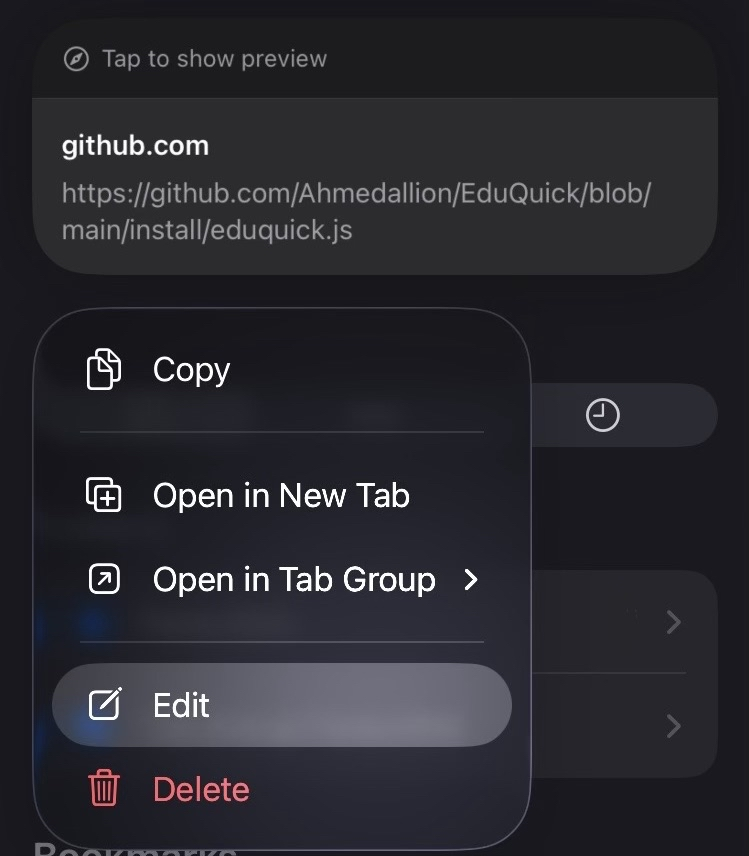
4. Configure EduQuick
Change the name to EduQuick. Delete the existing URL and paste the code you copied in Step 1. Tap Done to save.
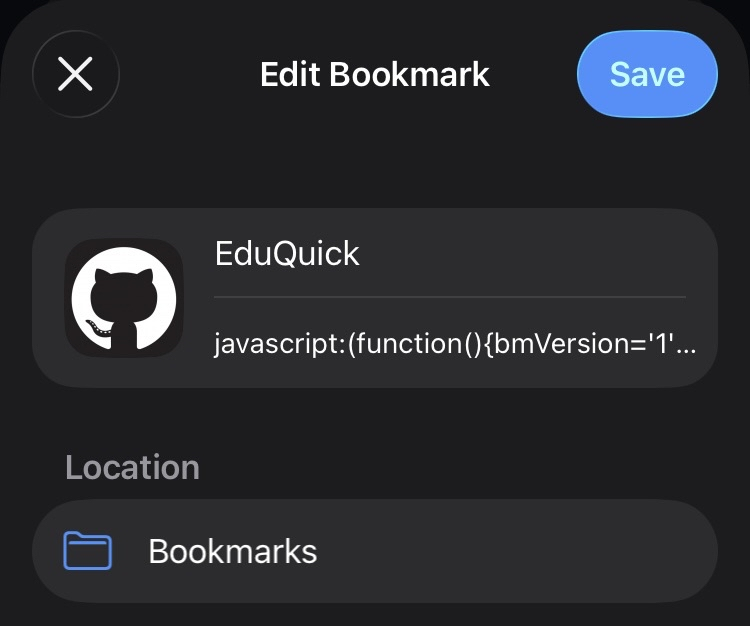
Running EduQuick
To ensure the tool displays correctly on mobile devices, follow these usage tips:
- Login: Ensure you are logged into your Educake account first.
- Orientation: Rotate your device to Landscape (horizontal) mode.
- Zoom: Zoom out fully so the page is at its default scale.
- Launch: Open your bookmarks and tap EduQuick to run the script.
Tip: If the script doesn’t run, double-check that the URL in your bookmark starts with
javascript:. Some mobile browsers strip this prefix during pasting.